

How to Safely Download OnlyFans Images You Access
We have all been there: you are browsing a website, you want to download OnlyFans images that you have legally purchased or subscribed to, you right-click to save it—and nothing happens. Websites do this by using a small hidden script that turns off your right-click menu. They implement this to make it harder for casual users to archive pictures. However, there is a simple rule about the internet: if an image appears on your computer screen, it has already been downloaded by your web browser.
Because your browser already has the image, you don’t need any sketchy third-party apps, paid downloaders, or sketchy extensions to complete the task. You just need to tell your browser to give it to you.
Why Standard Methods Fail (The “Lazy Loading” Problem)
Many modern platforms use a trick called lazy loading to show their pictures. Instead of loading every single photo the moment you open a page, the website only loads a picture when it is directly in front of your face. The second you slide or swipe to the next photo, the old one is completely erased from the webpage’s memory to keep the site running fast.
Because the images are constantly appearing and disappearing, regular download buttons or basic browser extensions get confused. They look for images that aren’t there anymore.
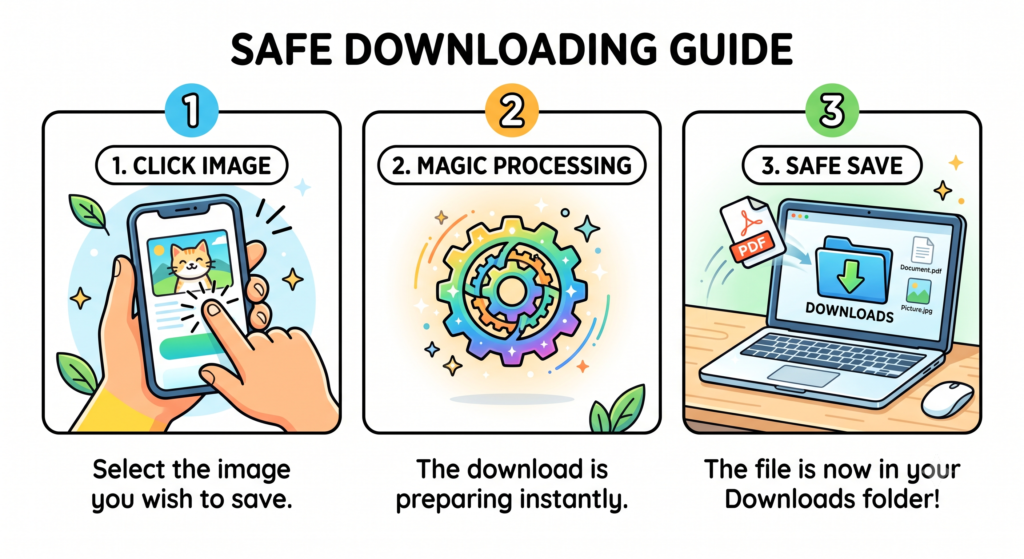
To fix this, we can use a tiny blueprint code that watches the webpage. The moment you click on any image, the code wakes up, grabs the image data, and forces your browser to download it instantly.
The One-Click Download OnlyFans Images Solution
By using the built-in “Developer Tool” panel already sitting inside your web browser (Chrome, Edge, Firefox, or Brave), you can turn your regular mouse click into a powerful download button.
Here is the exact code you will use to download OnlyFans images directly to your device. It is completely safe, runs entirely on your own computer, and doesn’t send your data anywhere:
JavaScript
(function() {
  // 1. Tell the browser to watch the whole page for clicks
  document.body.addEventListener('click', async function(event) {

    // Check if what you clicked is part of the image gallery wrapper
    const isInPhotoSwipe = event.target.closest('.pswp__item');

    if (isInPhotoSwipe) {
      // Find the actual image you are looking at
      const img = event.target.closest('img') || isInPhotoSwipe.querySelector('img');

      if (img && img.src) {
        // Stop the website from closing the picture or zooming in
        event.preventDefault();
        event.stopPropagation();

        const imageUrl = img.src;

        // Give the image a clean, readable name
        const filename = imageUrl.split('/').pop().split('?')[0] || 'saved-image.jpg';

        console.log(`Grabbing your image...`);

        try {
          // 2. Safely pull the raw image data so the browser doesn't block it
          const response = await fetch(imageUrl);
          if (!response.ok) throw new Error('Failed to grab image');
          const blob = await response.blob();

          // 3. Convert that data into a local downloadable file
          const localUrl = URL.createObjectURL(blob);

          // 4. Create a hidden download link and click it automatically
          const downloadLink = document.createElement('a');
          downloadLink.href = localUrl;
          downloadLink.download = filename;

          document.body.appendChild(downloadLink);
          downloadLink.click();
          document.body.removeChild(downloadLink);

          // Clean up browser memory
          URL.revokeObjectURL(localUrl);
          console.log(`Successfully saved: ${filename}`);

        } catch (error) {
          console.error("Standard download blocked. Opening in a new tab instead...", error);
          window.open(imageUrl, '_blank');
        }
      }
    }
  }, true); // This ensures our download happens before the website can say no

  console.log("One-Click Downloader is now turned ON!");
})();
Step-by-Step Instructions to Download OnlyFans Images
Ready to use it? Just follow these simple steps to download OnlyFans images that you have active access to:
Step 1: Open the Secret Browser Menu to Download OnlyFans Images
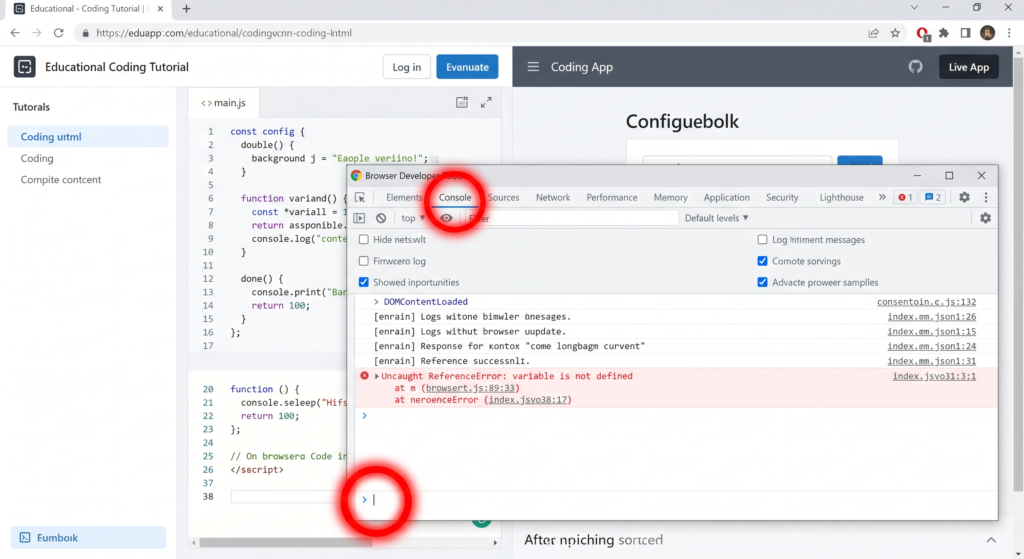
Go to the webpage with the image gallery you want to save. Open your browser’s console menu by pressing a quick shortcut on your keyboard:
- If you are on Windows or a PC: Press the
F12key (or holdCtrl+Shift+I). - If you are on a Mac: Hold
Cmd+Option+I.
A side panel with lots of text will slide open. Look at the very top of that panel and click on the tab named Console.
Step 2: Paste the Code
Copy the big block of code above. Paste it directly into the empty white space at the very bottom of that Console window, right next to the little blue arrow >. Press Enter on your keyboard.
You will see a message pop up that says: "One-Click Downloader is now turned ON!"
Step 3: Just Click to Download OnlyFans Images!
Now, look back at the website gallery. Simply click normally on any image you want to save. Instead of zooming in or ignoring you, your browser will immediately open a pop-up window asking you where you want to save the picture on your computer!
What to Do If a Picture Still Won’t Download OnlyFans Images
Websites constantly update their security, but you can always get around it using these two backup tricks:
The “New Tab” Fallback
If the website has super strict security blocks, our script is smart. It will automatically open the image by itself in a brand-new browser tab. Once that tab opens, simply hold down the Alt key (or Option key on Mac) and click on the image. It will download instantly.
The Network Secret
If you want to find an image without using any code at all, open that developer menu (F12), and click the tab that says Network (right next to Console). Click the small sub-button that says Img. Now, refresh your webpage. You will see a neat list of every single photo on that page appear in a list. Just double-click any item in that list to see and save the image!
Frequently Asked Questions
Is using this code safe for my computer?
Yes, it is 100% safe. This code is just a simple shortcut command telling your own web browser to do something it already knows how to do. It does not install anything on your computer, it doesn’t contain viruses, and it cannot see your passwords or personal information.
Do I have to paste the code every single time?
Yes. Because this method is temporary and safe, the code completely disappears the moment you close the website tab or refresh the page. If you go to a new gallery tomorrow, just open the console and paste it in again.
Why do some downloaders open images in a new tab instead of saving them?
This is a built-in safety feature of your browser. If a website stores its images on a separate server (like a CDN), your browser blocks websites from forcing downloads to prevent malicious files from auto-downloading. Our script fixes this by turning the image into a temporary local file first, tricking the browser into saving it safely. You can read more about how browsers handle images on the MDN Web Docs page.
Do you likes games ? If yes visit here